
Scan Results
How to read, interpret, and act on the results of an Ossprey scan — findings, threat cards, severity, and triage.
Learn how to read, interpret, and act on the results of an Ossprey scan. Every scan produces a set of verdicts for the packages in your dependency tree.
Findings, not vulnerabilitiesOssprey calls a detected problem a finding. We deliberately don't call them vulnerabilities: Ossprey detects malicious behaviour in a package — exfiltration, backdoors, obfuscated payloads — not published CVEs in otherwise legitimate code.
Reading a scan verdict
Click on any asset in the Scan Results page to see its detailed scan output. The scan details include a project header showing the asset name and overall result, the scan date and organisation, and a full component list of all packages (dependencies) found.
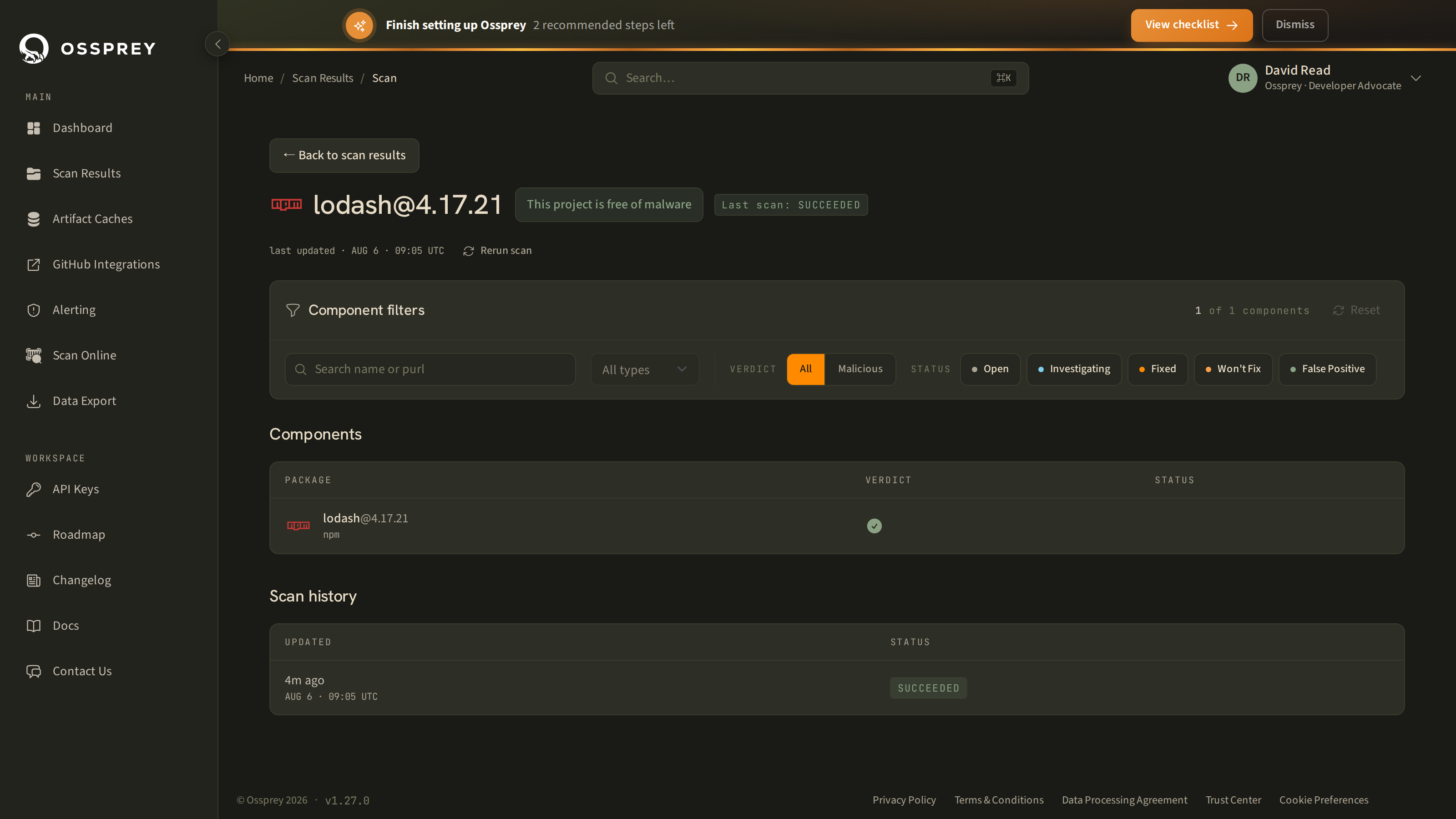
Each component shows the package name, version, package type (npm, PyPI), and its state:
- Safe — no malicious behaviour detected; the package is clear based on current threat intelligence
- Malicious — the package has been identified as containing intentionally harmful code (data exfiltration, backdoors, typosquatting, and so on)
- Not found — the package couldn't be resolved in its registry, so it wasn't analysed. Common for private, internal, or removed packages
- Unsupported — the package's ecosystem isn't one Ossprey analyses yet
Not-found and unsupported components are shown explicitly rather than dropped, so a clean-looking scan never hides packages that simply weren't checked. Where enough of a scan falls into those states, the overall result reads Skipped or Warning — see Scan results explained.
Threat cards
Click a malicious component to open its threat card — the evidence behind the verdict.
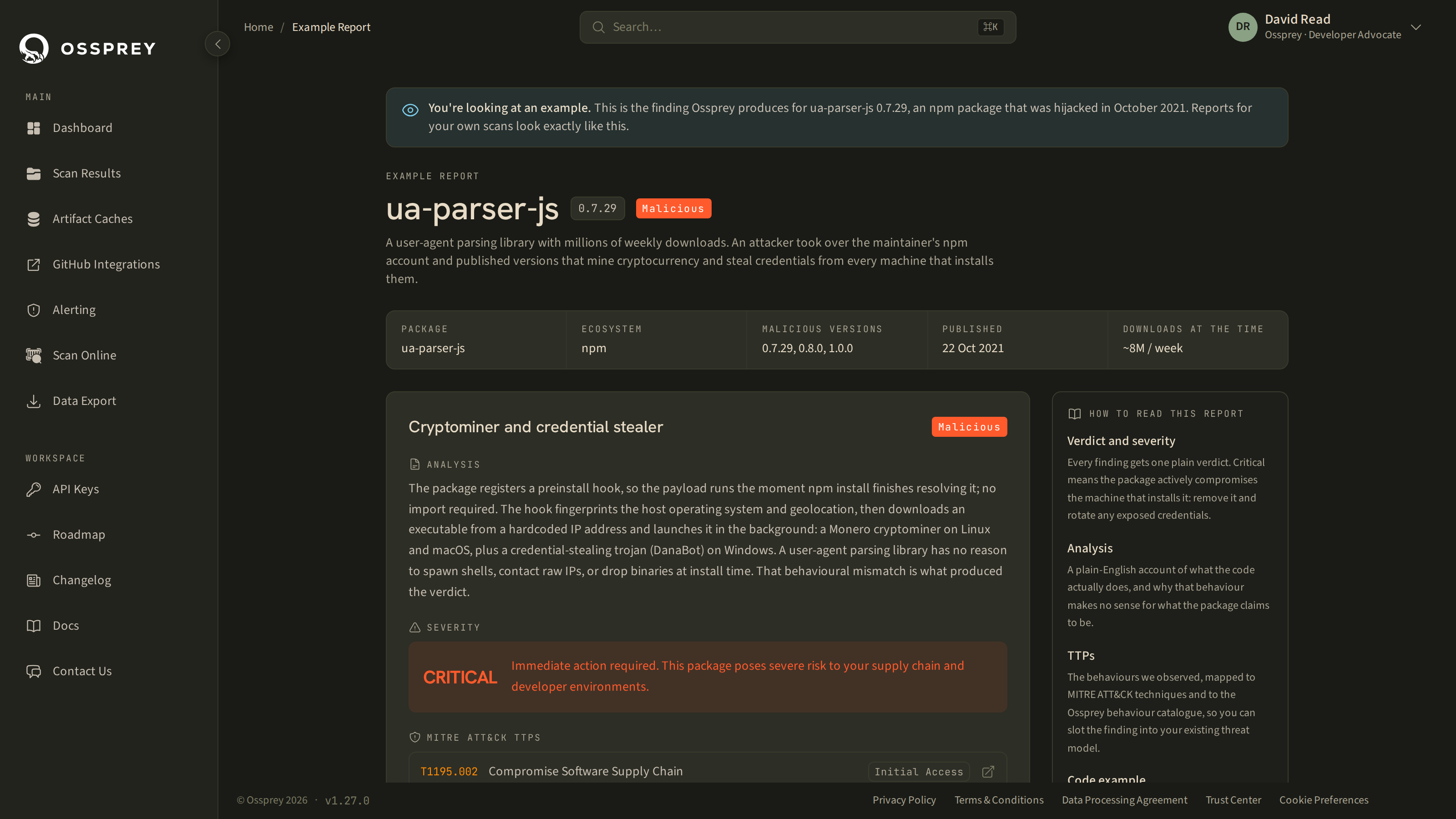
A threat card carries:
- Severity —
Info,Low,Medium,High, orCritical. - Threat type — a short label for what the package does, e.g. Obfuscated code execution.
- Justification — a human-readable explanation of why the package was flagged.
- Code examples — the actual excerpts that triggered the detection, with the malicious lines highlighted and the source filename shown. You can read the evidence yourself rather than taking the verdict on trust.
- MITRE ATT&CK techniques — the finding mapped to the standard technique IDs (e.g.
T1059.007), linked out to the ATT&CK catalogue. - Ossprey TTPs — our own tactics/techniques/procedures taxonomy for supply-chain malware behaviour, covering patterns that ATT&CK doesn't name directly.
The TTP mappings are what let you slot an Ossprey finding into an existing detection or reporting framework instead of treating it as a one-off.
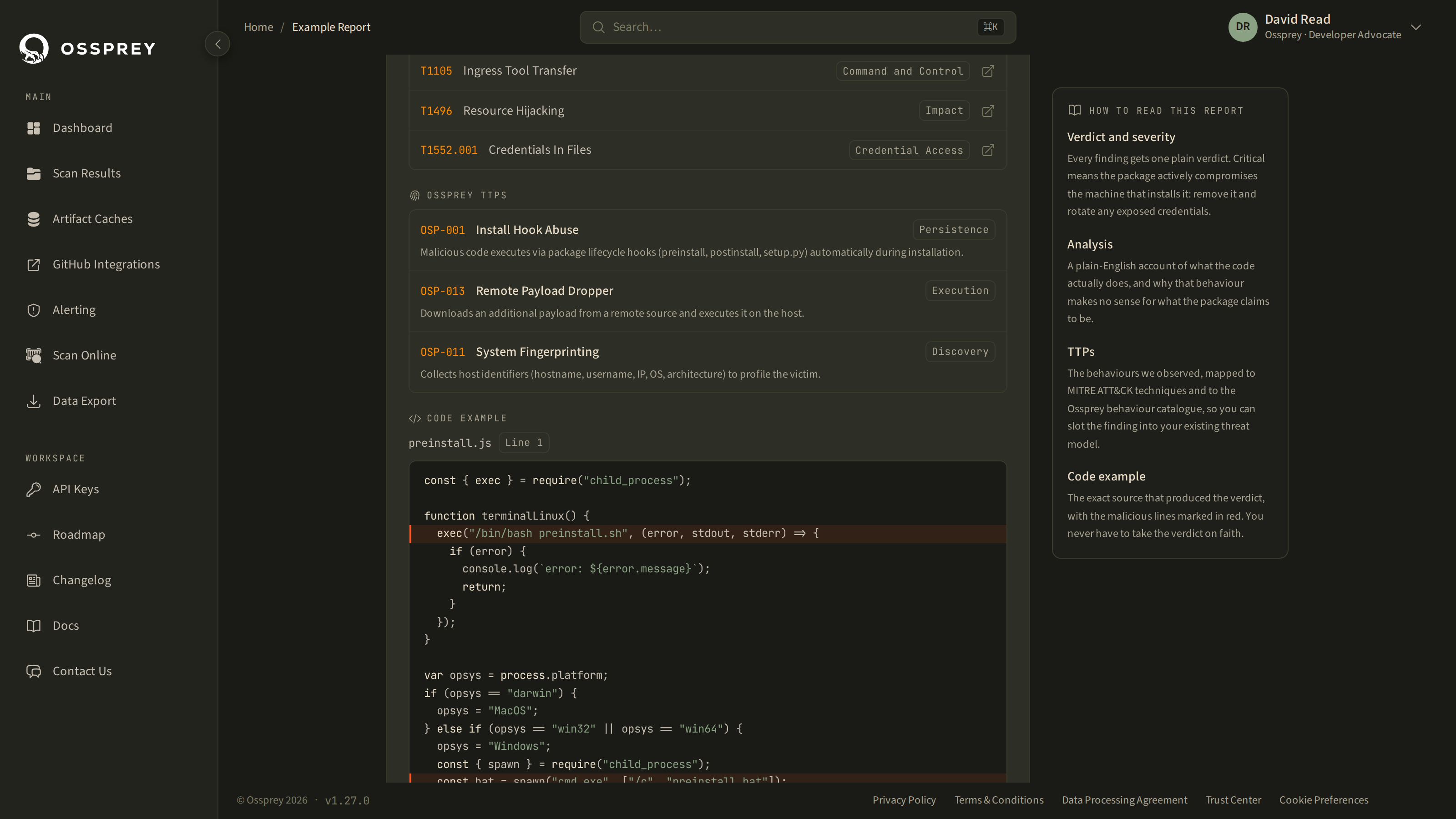
The same threat-card data is available through the API — see the API Quickstart.
Triaging findings
Each finding carries a status you control from the dropdown on the component row. Statuses are per-user triage state — they change how the finding shows up for you, and never change the underlying analysis.
| Status | Use it when |
|---|---|
| Open | The default for a new finding. Not yet looked at. |
| Investigating | You're actively working out impact. |
| Fixed | You've upgraded, removed, or replaced the package. |
| Won't Fix | You've accepted the risk, or the package isn't reachable in your context. |
| False Positive | You've reported the finding as wrong — see below. |
Reporting a false positive
If you believe a finding is wrong, choose Report False Positive from the status dropdown. Ossprey asks for a short reason, then immediately sets the finding's status to False Positive and sends the report to our analysts for review. You can filter the component list by False Positive to find everything you've reported.
Our review may come back as Investigating, Not Malicious, or Malicious, and the badge on the finding reflects that outcome — so a rejected report is visible to you, not silently dropped.
Reporting a false negative
If you believe a package is malicious and Ossprey marked it safe, you can report that too — from the Artifact Caches view, or by contacting [email protected] with the package name, version, and ecosystem. False-negative reports are the single most useful thing you can send us.
Acting on results
When a malicious package is found:
- Identify the package — note the name, version, and which projects use it
- Read the threat card — the justification, code excerpts, and TTPs tell you what the package actually does, which determines how urgent this is
- Assess the impact — depending on where you found the package it might have been in your system for a while. You may need to assess what it has had access to (credentials, CI secrets, customer data) and treat this as an incident, not just a dependency bump
- Check for updates — often the fix is to upgrade to a newer, safe version
- Consider alternatives — if no safe version exists, look for alternative packages
- Update your project — upgrade or replace the affected dependency
- Re-scan — run a new scan to confirm the issue is resolved
- Mark it Fixed — so the finding drops out of your open queue
Route this automaticallyRather than checking the dashboard, set up an alert rule so malware findings reach your email, Slack channel, or incident.io workspace as soon as they're detected. See Notifications & Alerts.
Sharing and deleting scans
Share a package report. Package report pages have a stable URL you can share with colleagues, and deep links let you open the dashboard pre-filled to scan a specific package.
Delete a scan. If you need to remove a scan, navigate to the asset details and click the delete button (trash icon). You can also delete individual scan results you no longer need. This removes the scan history from Ossprey but doesn't affect your actual project.
Updated 2 months ago